How to use PGP: your own key, encrypted messages and market logins
PGP runs on two keys you make yourself: a public key you give to anyone, and a private key that never leaves your hands. A message encrypted to your public key opens only with your private key, and anything you sign with the private key can be checked by anyone holding the public one. How to use PGP on Tor comes down to four jobs: making the pair, encrypting to someone, decrypting what comes back, and passing a market's PGP login. The mistakes that expose people are nearly all made in the first ten minutes, while creating the key, in fields that look like paperwork.
Public key, private key: the only theory you need
Think of the public key as an open padlock you hand out by the hundred. Anyone can snap one shut on a box, and only your private key opens it again. That is encryption. Signing runs the other way: you seal something with your private key, and anyone can use your public key to confirm the seal is yours and unbroken.
Both keys are just blocks of text, generated together on your computer. The public block is meant to be pasted onto profiles. The private one is protected by a passphrase, which is all that stands between someone who copies the file and full use of your key. PGP itself is an open standard, currently RFC 9580, and GnuPG is the free program almost everyone runs to use it, whatever the window on top looks like.
Which PGP program to use
| System | Program | What to know |
|---|---|---|
| Windows | Gpg4win, which installs Kleopatra and GnuPG | The Kleopatra steps on this page are written for it. The Gpg4win compendium is the official Kleopatra tutorial, with a screenshot of each dialog |
| macOS | GPG Suite, or GnuPG from Homebrew | GPG Suite's key manager, GPG Keychain, is free. Its exported keys carry a header line naming it, which is covered below |
| Linux | gpg, already installed on most distributions; Kleopatra from the package manager | The gpg commands on this page work as written |
| Tails | Kleopatra, built in | Keys disappear at shutdown unless the GnuPG feature of Persistent Storage is turned on. The Tails documentation for Kleopatra shows where everything is |
Whichever you use, the private key stays inside that program on your own machine. A website that offers to generate keys, encrypt or decrypt for you has seen your private key or your plaintext. So has a market's "encrypt this for me" box, because the text reached the market's server before anything was encrypted. We encrypt everything locally, every time, and paste in only the finished block.
How to create a PGP key pair
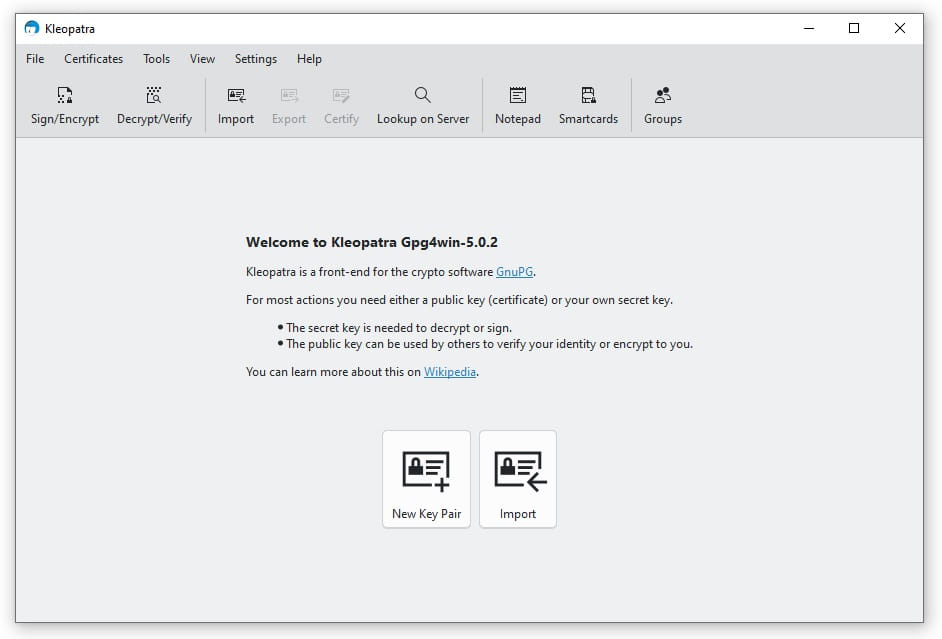
In Kleopatra:
- Choose File → New OpenPGP Key Pair.
- Fill in Name and leave Email empty. What belongs in those fields is the next section, and it matters more than anything else on this page.
- Leave Protect the generated key with a passphrase ticked.
- Beginners can leave Advanced Settings closed. Current versions default to an elliptic-curve key, which is fine. A few markets still reject those, and if yours does, make the key again with RSA at 4096 bits. Leave the expiry date set; you can extend it later.
- Create the key and type the passphrase twice. Make it a long string of random words used nowhere else, because a weak passphrase turns a stolen key file into a working key.
- Kleopatra then offers to back the key up and to upload it to a directory service. Do the first now, as described below. Never do the second for a key tied to a Tor identity: a public key server publishes your key to the world, and some keep it forever.
With gpg, run gpg --full-generate-key, accept the default key type unless a market wants RSA, give a name (gpg insists on at least five characters), leave Email and Comment blank, and set the passphrase when asked.
What name and email to put on your key
Everything in these fields goes out with your public key, to every market, vendor and forum you give it to, and stays readable in every copy anyone ever saved. Fill them in as if they were printed on the front of the key, because they are.
- Name: a handle made for this identity and used nowhere else. Matching your username on the market where you will use the key is fine. Your real name, a nickname friends know, or a handle from a forum you used years ago are the mistake.
- Email: blank. If something insists on one, an address created for this identity alone, over Tor, and never your everyday address.
- Comment: blank.
The exported text can say more than the fields. GPG Suite adds a line beginning Comment: GPGTools above the key, which tells everyone who reads it that you use a Mac. Lines like that, and any Version: line, sit outside the key data, so delete them before pasting and the key still imports.
Make one key per identity. The same public key on two accounts tells anyone who compares them that both are one person, and every encrypted message carries the key ID of each recipient, so a shared key links the messages as well. How this fits with the rest of keeping identities apart is in our darknet OPSEC guide.
Make sure you hold a revocation certificate
A revocation certificate is a small signed file that tells anyone holding your public key that the key is dead. It can only be made while you still have the private key and know its passphrase, so the time to secure it is before the key's first use, not after you lose it.
GnuPG, and so Kleopatra, makes one automatically with every new key. It sits in the openpgp-revocs.d folder of the GnuPG home directory, named after the key's fingerprint and ending in .rev: %APPDATA%\gnupg\openpgp-revocs.d on Windows and ~/.gnupg/openpgp-revocs.d on Linux and macOS. Copy it to wherever your backup will live. To make another by hand, run gpg --output revoke.asc --gen-revoke followed by your key's fingerprint.
The automatic file has a colon in front of its BEGIN line, so it cannot be imported by accident. On the day you need it, delete that colon in a text editor and import the file; the key is then revoked on your machine. Export your public key again and paste the revoked version wherever you published the old one, so anyone who checks sees it is finished.
Sharing your public key and backing up the private one
To share the public key, right-click your key in Kleopatra and choose Export, or run gpg --armor --export with your fingerprint and save the output to a file. Open the file in a text editor and copy everything from -----BEGIN PGP PUBLIC KEY BLOCK----- to -----END PGP PUBLIC KEY BLOCK-----, both lines included, into the key field on your profile. When a market reports an invalid key, a missing first or last line is usually why.
To back up the private key, right-click it and choose Backup Secret Keys (Export Secret Keys in older versions), or run gpg --armor --export-secret-keys with your fingerprint. The backup stays locked by your passphrase. Keep it, with the revocation certificate, on an encrypted USB stick or in Tails Persistent Storage, away from the computer you use every day, and never in cloud storage, email, a notes app or a chat with yourself.
Then test it once: import the backup in a fresh Tails session or on another machine and decrypt a message with it. Until you have restored a backup, you only hope you have one.
Encrypting a message to someone else's key
- Import their public key and check its fingerprint against a second source, such as the key on a vendor's profile against the one behind their signed posts. Encrypting to a phisher's key delivers your message to the phisher, intact and readable. How to compare fingerprints properly is in our guide on verifying onion links and signed messages.
- Open the Notepad in Kleopatra and write the message.
- On the Recipients tab, add their key under Encrypt for others. Tick Sign as, with your own key, if they should be able to tell the message is from you.
- Decide on Encrypt for me. Ticking it lets you read your own sent message later. It also writes your key's ID into the message, so anyone holding the message can see it was encrypted to your key too. Under one identity, whose key is on its profile anyway, that costs nothing.
- Click Sign / Encrypt Notepad and paste the whole block, from
-----BEGIN PGP MESSAGE-----to the END line, into the message box.
With gpg: gpg --armor --encrypt --recipient followed by their fingerprint and the file name gives you a .asc file to paste. Name the recipient by fingerprint, not by name, because two keys can carry the same name and gpg will not ask which one you meant.
How to decrypt a PGP message
Paste the whole block into Kleopatra's Notepad, click Decrypt / Verify Notepad, and type your passphrase when the prompt appears; the plaintext replaces the block. On the command line, gpg --decrypt message.asc prints it. If the sender also signed it, the result says whose signature it carries, and that is checked the same way as any signed list: by fingerprint.
Two failures account for most of the trouble. "No secret key" means the message was encrypted to a key you do not hold: the sender used an old key of yours, someone else's, or the message was never for you. Ask them which fingerprint they encrypted to. A rejected passphrase you are sure of is usually caps lock or the keyboard layout, and in Tails especially, where the layout is set on the Welcome Screen and a passphrase typed on the wrong one fails every time.
Passing a market's PGP 2FA login
A market with PGP login takes your password, then shows a short message encrypted to the public key on your profile. Only your private key can open it, so a stolen password alone gets nobody in.
- Before switching it on, put your public key on your profile and complete the test decryption most markets ask for. That proves the market holds the right key and that you can open what it sends.
- At login, copy the whole challenge, BEGIN and END lines included.
- Decrypt it. Inside is usually a sentence containing a code, and sometimes the site's address.
- Paste only the code: not the sentence around it, and with no spaces either side.
- If it is refused, get a fresh challenge rather than retrying the old code. Challenges expire within minutes, and many markets issue a new one after each failure.
"No secret key" at step 3 means the profile carries a different key from the one in your keyring, most often a new key you made and never uploaded. Lose the private key while PGP login is on and you are locked out. Few markets can reset it, and those that can rely on a recovery phrase shown once at sign-up, which belongs with your key backup.
PGP login stops a stolen password. It does not stop a phishing relay, which passes the market's challenge through to you and uses the code you paste; our Mars Market link guide shows how that works against Mars accounts. The address some markets print inside the challenge is there for exactly this: when it differs from the one in your address bar, you are on a relay and should paste nothing.
Signing a message, and when you need to
A signature proves a message came from your key and was not changed on the way. You need one when support or a vendor has to know a complaint is really from you, when you prove you own an account after a phishing scare, and when you announce a new key: sign that announcement with the old key, which is the same hand-over readers check for when a market changes keys.
In Kleopatra's Notepad, tick Sign as with your key on the Recipients tab, leave encryption off, and sign. With gpg, gpg --clearsign message.txt writes a readable copy with the signature underneath. Every signature carries your key's fingerprint, so anything you sign is tied to this identity wherever it ends up. That is the point of signing, and the reason never to sign with the key of a different identity.
If your private key is lost or stolen
- Lost: deleted, passphrase forgotten, USB stick dead, no backup
- Nothing sent to that key can be decrypted again, by you or anyone else. Publish the revocation certificate wherever the key is known so people stop encrypting to it, make a new key, and put it on your profiles from inside your accounts. With PGP login on and no recovery phrase, an account tied to the lost key is usually gone.
- Stolen: copied by malware, taken with a device, pasted into a web page
- The passphrase is now the only thing between the thief and your key; assume it will not hold. Revoke straight away, publish the revoked key where you published the old one, make a new key and swap it into every account before the thief does. Tell your contacts in a message signed with the new key.
In both cases the old messages stay where they are. Anything ever encrypted to a stolen key, including copies sitting on a market's server or in a seized database, can be read by whoever holds that key, and nothing done afterwards closes those messages again. One key per identity, and messages that say no more than they need to, is what keeps that damage small.